

Your new website goes live, and it looks great. Then someone clicks an old link from Google, an old email, or a saved bookmark, and lands on a "page not found" message.
That is what happens when a redesign launches without redirects. Visitors get lost, and Google loses track of pages it used to rank. In our guide on whether a website redesign hurts your SEO rankings, missing redirects came up as the biggest reason rankings drop after a rebuild.
This guide shows you how to avoid that, step by step. You need a list, a plan, and someone to set it up and test it. There is also a URL map you can copy for your own project.
What Is a 301 Redirect?
A 301 redirect is a forwarding address for a web page. When someone opens an old URL, the server sends them to the new one automatically. The "301" tells browsers and Google that the move is permanent.
This matters because your old URLs hold value. Google has been ranking them for months or years, other websites link to them, and customers have saved them. A redirect carries visitors and Google to the new page, so that value is not lost. Google has said that redirecting to a new URL does not cause a loss of link value, according to its site move guidance.
There is also a 302 redirect, which means "temporary." For a redesign where pages have moved for good, use a 301.
When Do You Need Redirects in a Redesign?
You need a redirect any time a page's address changes. That usually happens when:
- Pages are renamed or moved to new folders, such as /services/web-design becoming /web-design
- Pages are merged into one, or deleted
- You switch from http to https, or from www to non-www
- You move to a new platform that builds URLs differently
- You change your domain name
If every URL on the new site is exactly the same as the old one, you do not need redirects. That is rare in a redesign, so it is safer to check than to assume.
Step 1: List Every Current URL
Do this before any design work starts. You cannot redirect pages you have forgotten about.
Collect URLs from several places, because no single source has all of them:
- Your sitemap, which lists the pages you want search engines to find
- A crawling tool, such as Screaming Frog, which scans your site the way Google would
- Google Search Console, which shows pages Google has already found
- Your analytics, which shows the pages people actually visit
Put everything into one spreadsheet. Then mark the pages that bring in traffic, rank for important keywords, or have links from other websites. These are your high-priority pages. If you are not sure which keywords each page ranks for, our guide to semantic keyword research can help.
Step 2: Build a URL Map
The URL map is the most important document in the whole project. It is a simple table with one row for each old page, showing where it goes on the new site.
Here is an example. The addresses are placeholders:
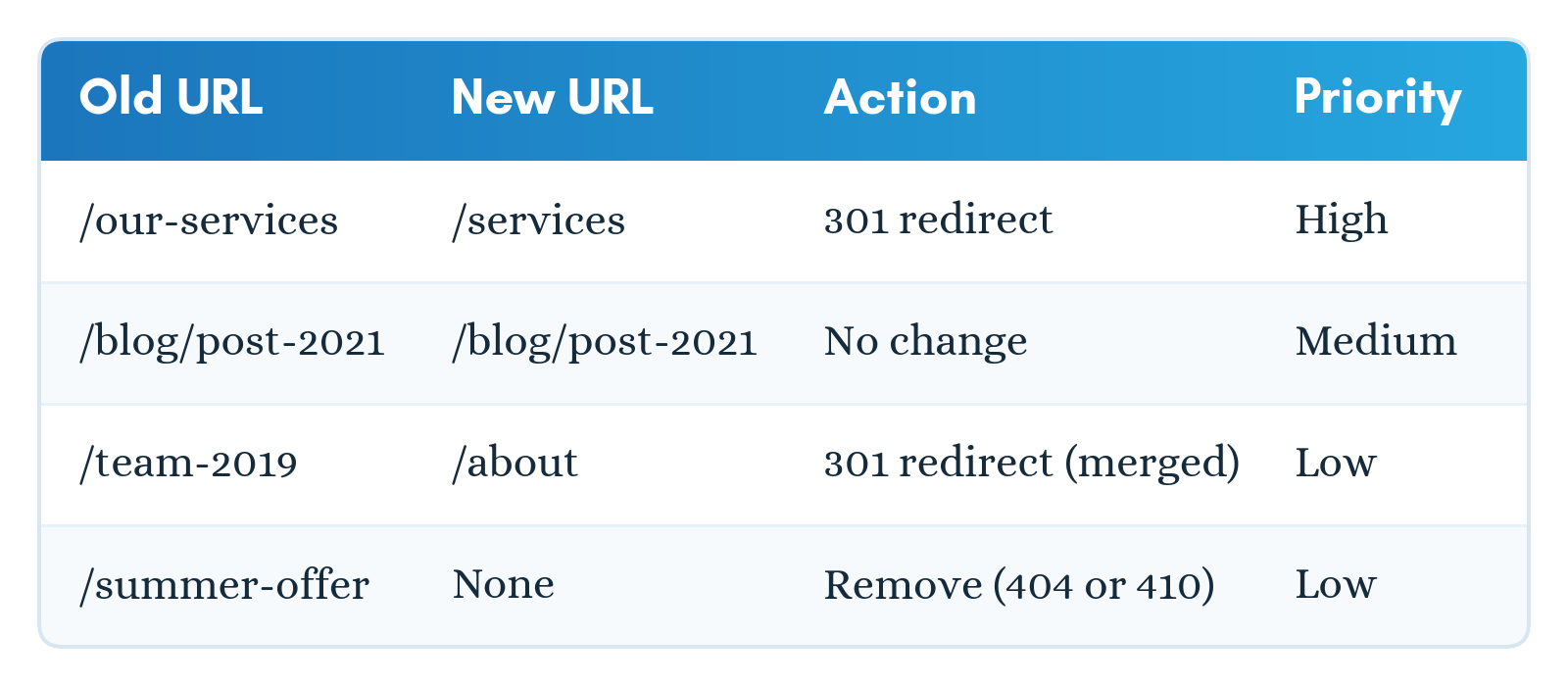
The rule for filling it in: match every old page to the closest page on the new site by topic, not by what is easiest. A page about web design should go to the web design page, not to the homepage.
Step 3: Decide What Happens to Each Page
Every old page ends up in one of four groups:
- Keep the same URL. Nothing to do.
- Move to a new URL. Use a 301 redirect to the new address.
- Merge into another page. Use a 301 redirect to the combined page.
- Delete. This one depends on whether a close replacement exists.
For deleted pages, be careful. If a close replacement exists, redirect to it. If not, do not send the visitor to the homepage. Google can treat a redirect to an unrelated page as a "soft 404," which means you did the work and got no benefit. When a page is gone for good and nothing replaces it, a normal "not found" (404) or "gone" (410) response is the cleaner choice.
Step 4: Set Up the Redirects
How redirects are set up depends on your platform. It might be a plugin on WordPress, a setting on the server, or a rule in your website framework or hosting. You do not need to do this yourself.
Give your developer the URL map with one clear instruction: one 301 redirect for every row marked "redirect." Also ask for two things:
- Redirect straight to the final page, not through a middle step
- Set it up on a test version of the site first, before it goes live
Step 5: Test Before and After Launch
Before launch, run the full list on the test version of the site. After launch, check these things:
- Every old URL goes to the right new page
- It happens in one step, not several
- The new page loads normally
- Search Console shows no new "page not found" errors in the first days and weeks
- Your new sitemap has been submitted in Search Console
Check your high-priority pages by hand too. Do not rely only on a tool.
Step 6: Keep the Redirects in Place
Google's guidance is to keep redirects for as long as possible, generally at least one year. This gives Google enough time to process the change. If other websites still link to your old URLs, keep the redirects even longer.
Meanwhile, update your own internal links, menus, and sitemap so they point to the new URLs directly. That way your own site does not depend on redirects to work properly.
Common Redirect Mistakes
- Sending every old page to the homepage. It confuses visitors and gives Google little reason to pass on the old page's value.
- Redirect chains. This is when an old page goes to a middle page, which then goes to the new page. Google can follow several steps, but it recommends going straight to the final page. Each extra step also slows the page down.
- Using a 302 when you mean a 301. A 302 says the move is temporary.
- Forgetting URL versions. The http and https versions, and the www and non-www versions, are all separate addresses.
- Redirecting to a broken page. Always check that the destination actually loads.
- Leaving old URLs in your own links. Update menus, buttons, and the sitemap after launch.
- Skipping the test. A redirect that was never checked is a guess.
301 Redirect Checklist
- List every current URL and mark the high-priority pages
- Build a URL map with one row per old page
- Decide for each page: keep, move, merge, or delete
- Give the map to your developer: one 301 per row, straight to the final page
- Test on the test version, then again after launch
- Update internal links and the sitemap
- Keep the redirects for at least one year
How Long Until Google Notices the Redirects?
Google has no fixed schedule. It handles a site move page by page, so busy pages are usually picked up faster than quiet ones.
In our redesign guide, we noted that most sites settle within a few weeks. If your traffic has not started to recover after four to six weeks, recheck your redirect list first. It is the most common cause.
When to Get Help With Your Redesign
If you are working with a developer or agency, ask three questions before the project starts:
- Will you prepare a URL map before building the new site?
- Will you test every redirect after launch?
- Will you watch Search Console in the weeks afterwards?
If the answer to any of these is no, your rankings are at risk. A good web development company in Chennai treats redirects as part of the build, not as something added at the end.
